Summon Ears with a hotkey, then pick output and input devices with arrow keys or shortcut keys.
Ears for macOS
Change audio
without losing focus.
Ears is the instant audio switcher for macOS. Press a hotkey, choose your speakers or microphone, and keep moving without opening System Settings.
Audio Output
Shift-Command-A
-
1AirPods ProBluetooth output
-
2iMac SpeakersBuilt-in output
-
3USB MicrophoneInput favorite
Instamute
Push to Talk enabled
Your Mac has too many audio paths for System Settings.
Headphones, speakers, webcams, microphones, meetings, music. Ears gives those switches a direct keyboard path.
Instamute gives your microphone one reliable hotkey from any app, even when the meeting app is not focused.
Choose default input and output volumes for specific devices so switching does not surprise you.
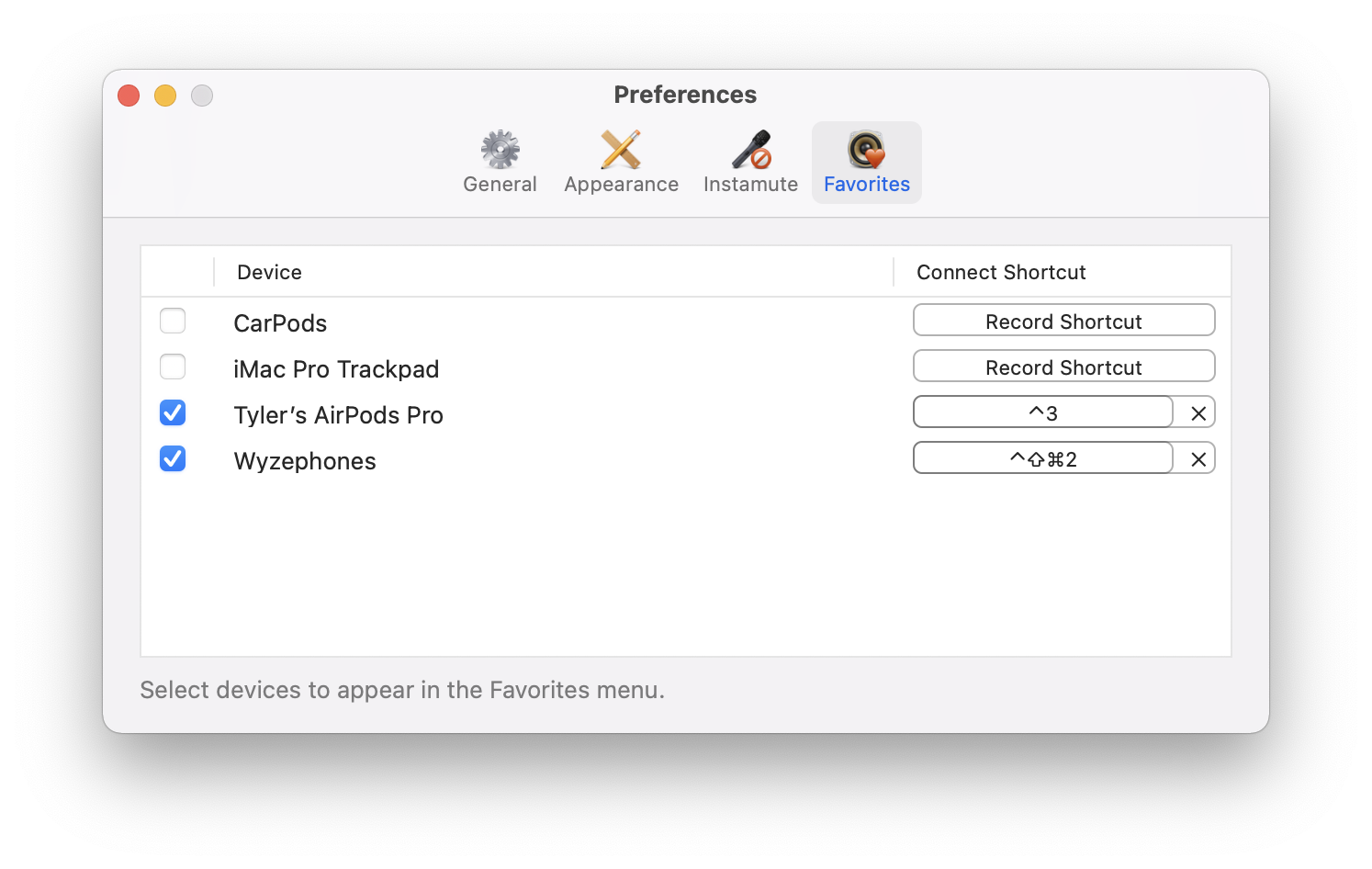
Mark Bluetooth devices as favorites and connect to them with shortcuts, Dock menus, or the menu bar.
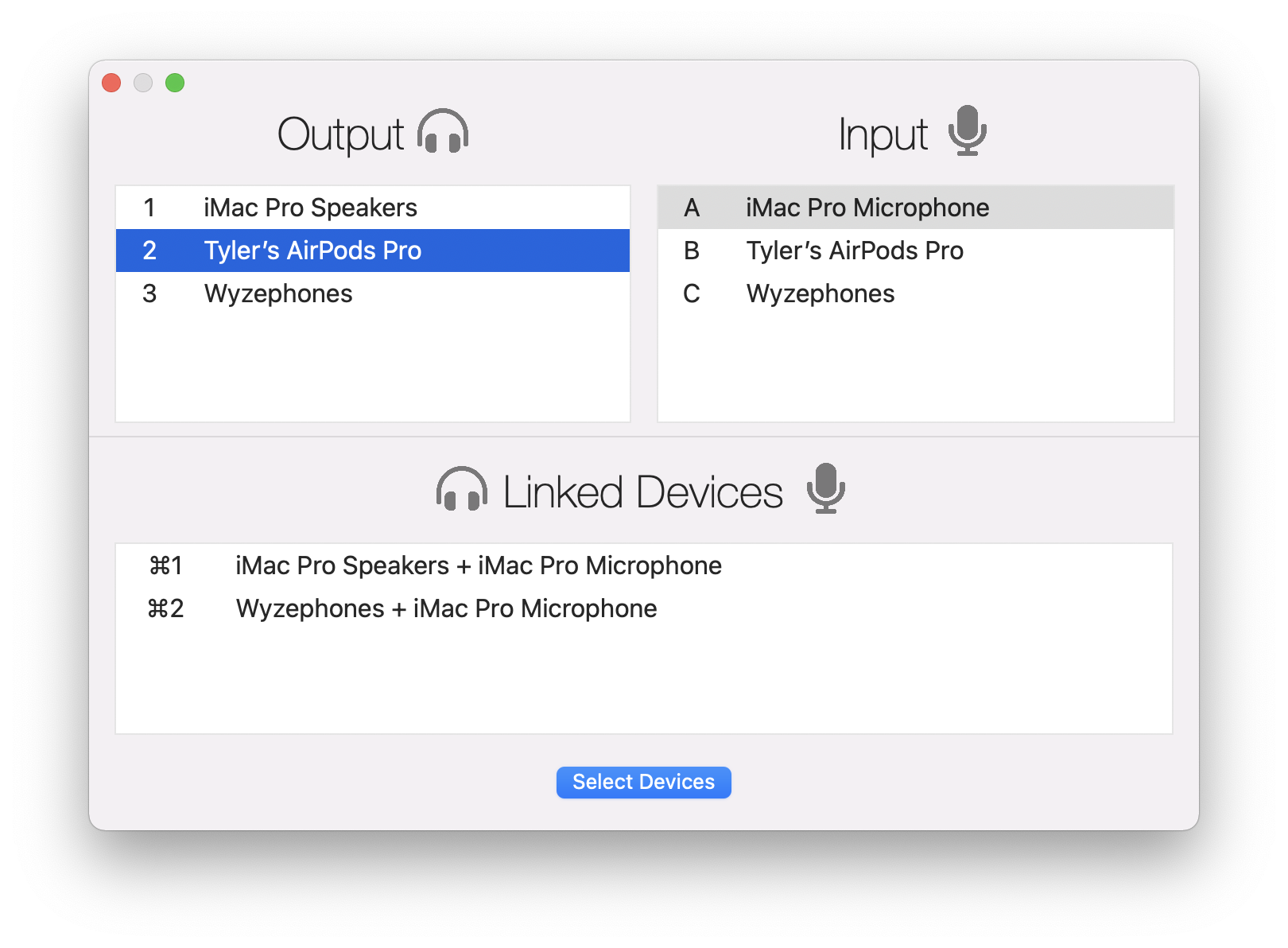
Pick output and input without opening System Settings.
The main Ears window keeps outputs, inputs, linked device sets, and shortcut hints visible in one focused place.
Instamute
One mute key for every meeting app.
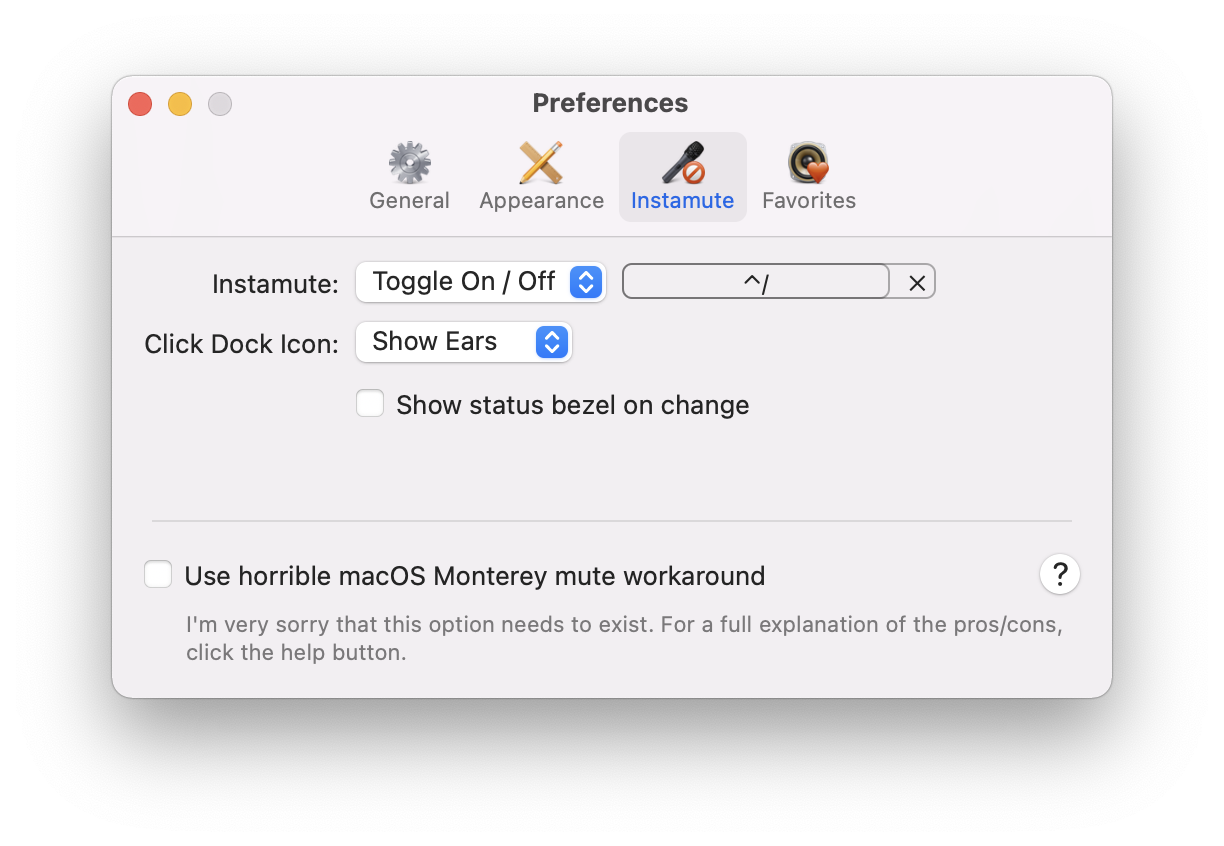
Zoom, Slack, Microsoft Teams, Google Meet, and the rest all use different shortcuts. Ears gives your microphone its own global control, independent of whichever app currently has focus.
Toggle mute on and off like a switch
Push to Talk stays muted until you hold the hotkey
Push to Mute works like a cough button
Geeks Rejoice
Control sound from scripts, launchers, and workflows.
Ears can be controlled from the command line or AppleScript, so you can wire audio changes into launcher actions, shell scripts, and personal automation.
ears --output "iMac Pro Speakers"
ears --input "USB Microphone"
ears --mute
ears --input "USB Microphone"
ears --mute
Small controls that prevent audio surprises.
Ears does one job, but it covers the edge cases that make audio switching annoying.
Switching
- Keyboard-first device picker
- Input and output selection
- Menu bar and Dock access
Meetings
- Global mute hotkey
- Push to Talk mode
- Push to Mute mode
Confidence
- Device-change notifications
- Spoken announcements
- Per-device default volumes
Preferences for the little details.
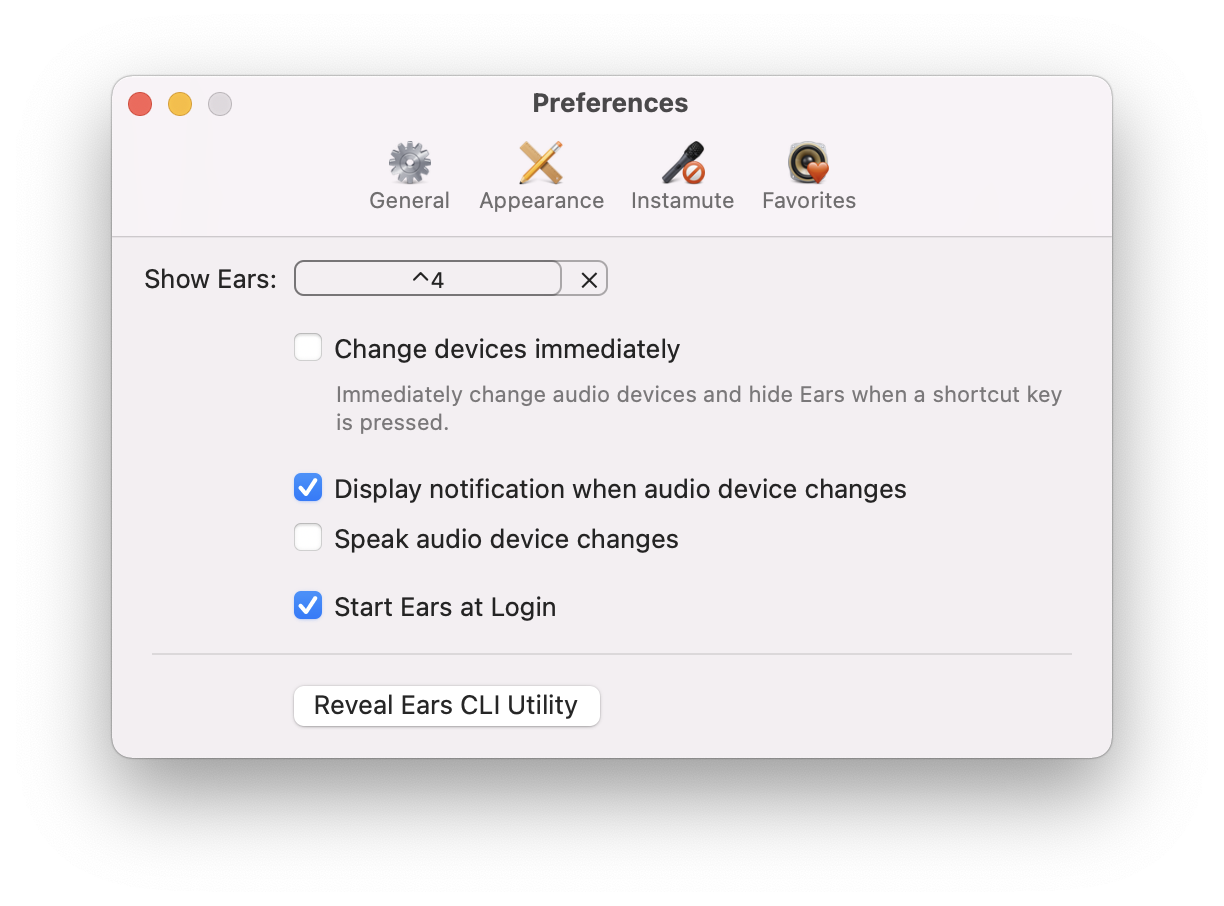
Set the global hotkey, choose your mute behavior, and mark favorite Bluetooth devices for quick reconnects.
Built for the audio hops you make all day.
A few common moves Ears makes faster and less fragile.
Send music to speakers, then jump to AirPods when the room gets loud.
Output switching
Use AirPods for listening while a USB microphone handles the meeting.
Input plus output
Mute your mic globally without remembering every app's shortcut.
Meeting control
Stop visiting System Settings for sound.
Download Ears for free, then buy a license for one user across multiple Macs when it earns a spot in your menu bar.